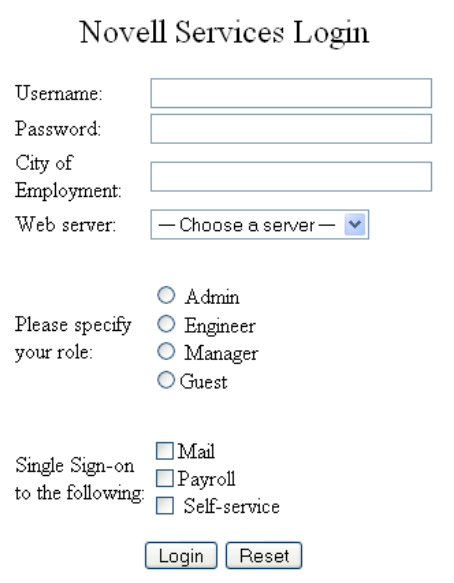
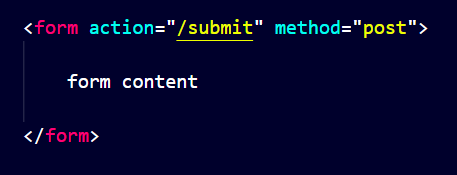
Form Tag :-
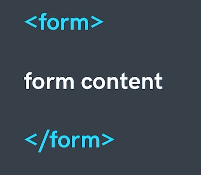
In form tag we use two attributes:-
"Action" Attribute :-
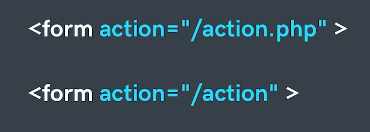
Action attribute is used to define what action needs to be performed when a form is submitted or where the form data should be sent.
"Method" Attribute :-
The method attribute specifies how to send form-data (the form-data is sent to the page specified in the action attribute).
The form-data can be sent as URL variables (with method="get") or as HTTP post transaction (with method="post").
Label tag :-
Label element represents a caption for an item in a user interface.
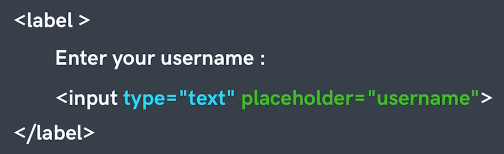
We can connect lable to a Input by two methods:-
By writing "Input" in the "Lable" tag:-
>-
By using "id"
This is Classical Approch

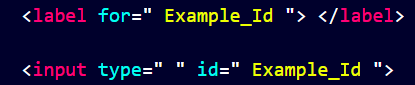
Id :- Id is a unique name which is given to an element. It is used to identify elements uniquely and gives them indivisuality.
Button Element :-
It is used to create a button. If we click on it then it will perform the action which is defined in the action attribute inside the starting form tag.
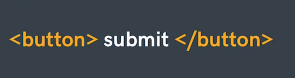
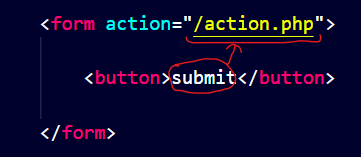
For example in above image pressing the submit button will perform the "action.php" activity.
Note :-
-
By Default every button in form work to perform action which is given inside the starting form tag.
Types of Button
There are Three types of buttons :-
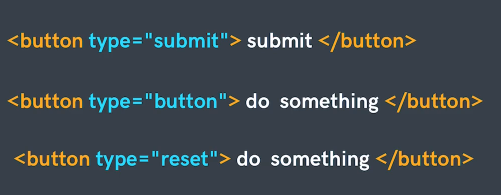
We also can create button element by using Input Element
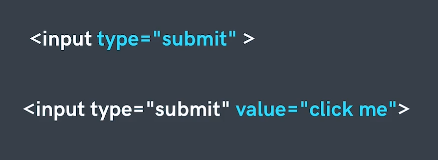
Input Tag :-
- Used to create multiple form controls.
- There are multiple types of inputs that can be created using type attribute.
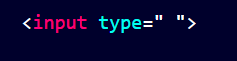
There are different Types of Inputs in HTML Form :-
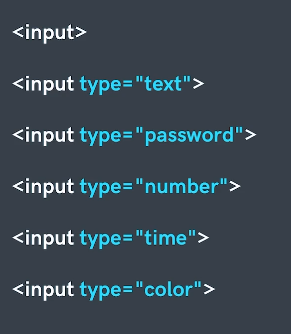
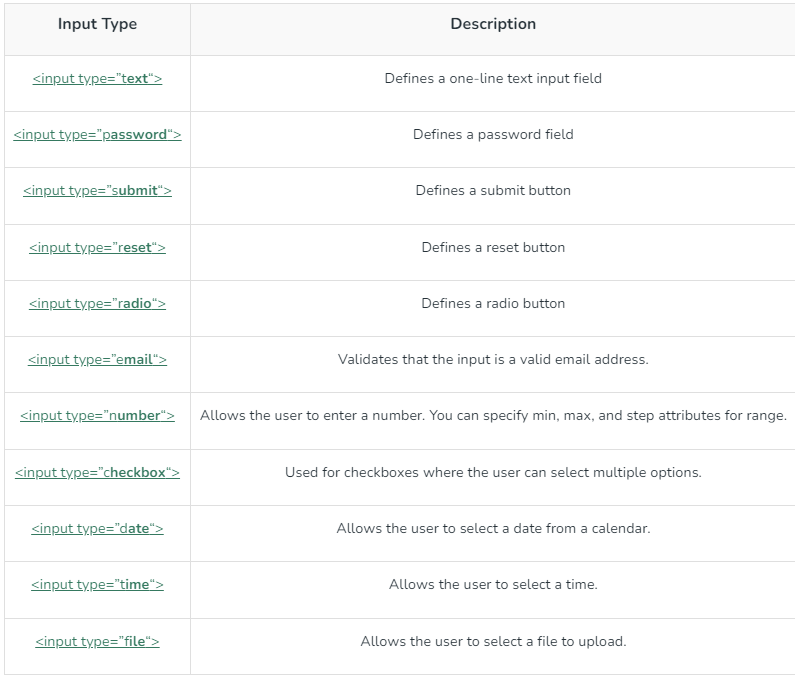
Different Form Input types :-
Attributes in Input Type :-
-
Placeholder Attribute :-

Placeholder Example :-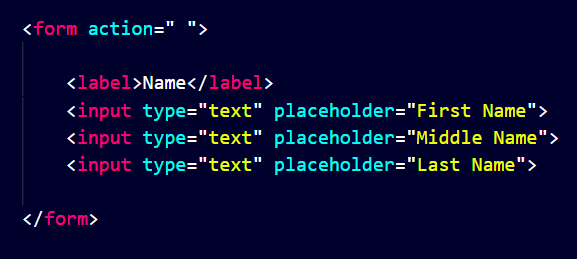
Output :-
-
Name Attribute (By Apna College) :-
-
Name of the form control. Submitted with the form as part of the namevalue pair.

-
Name attribute is used to send the "Name - Value" pair (name = value) to server after submitting the form.
Where Name is the attribute value which is defined by the coder and the Value is the data entered in the form by the user.
For Example :-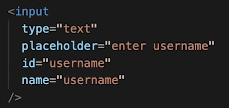
In above example if user write "ABCD" in the text area then "Name - Value" pair value will be "username - ABCD".
OR
Name Attribute (By internet):-
Specifies a name used to identify an element in form.
It is used to give a name to the control which is sent to the server to be recognized and get the value.

We can create a youtube search button by form by pasting the youtube link and remove all the information of url from ?

Output :-
Explainaton :- When we search something in youtube search bar then it will go as the "name - value" pair which is "search_query = user_input"

-
-
value Attribute :-
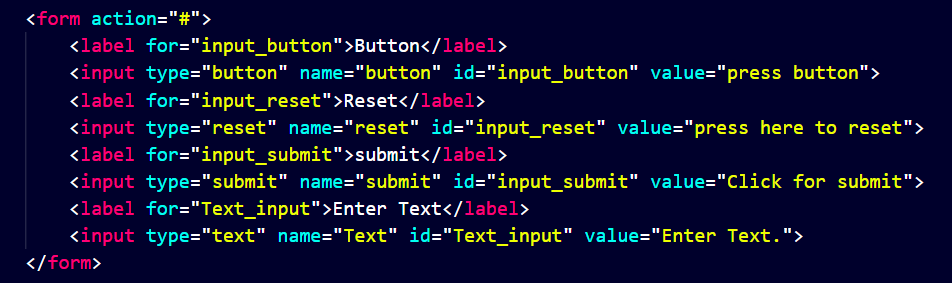
It initialize the value of an input type.. It is changed by user and this changed value is submitted to server by pressing the submit button.
- For "button", "reset", and "submit" - it defines the text on the button.
- For "text", "password", and "hidden" - it defines the initial (default) value of the input field.
- For "checkbox", "radio", "image" - it defines the value associated with the input (this is also the value that is sent on submit).
checkbox Input
Syntax :-
<input type="checkbox" name=" " id=" " checked>

Example :-
Note :- Here "Checked" attribute is used to pre-check the "checkbox". If we don't use it then the checkmark will be unmarked. ie -
Radio Button :-
-
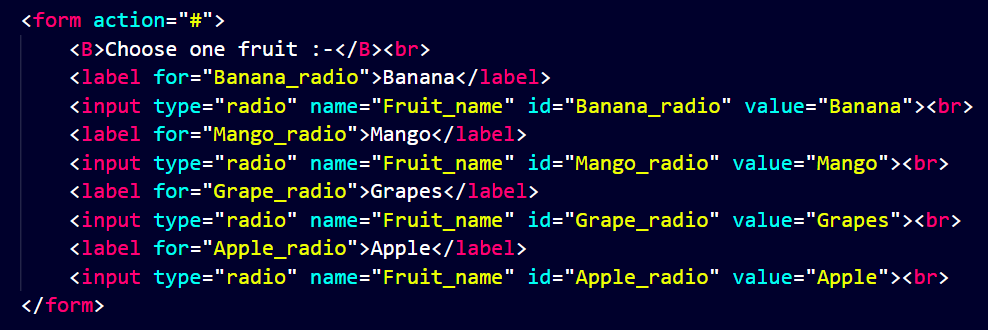
Radio in HTML is used when we have to choose only one option from many options.
-
Only one option will be selected from one group because in all radio inputs "name" attribute is same. So We can say that "Name" attribute in "Radio" is used for grouping of options where one option can be selected.
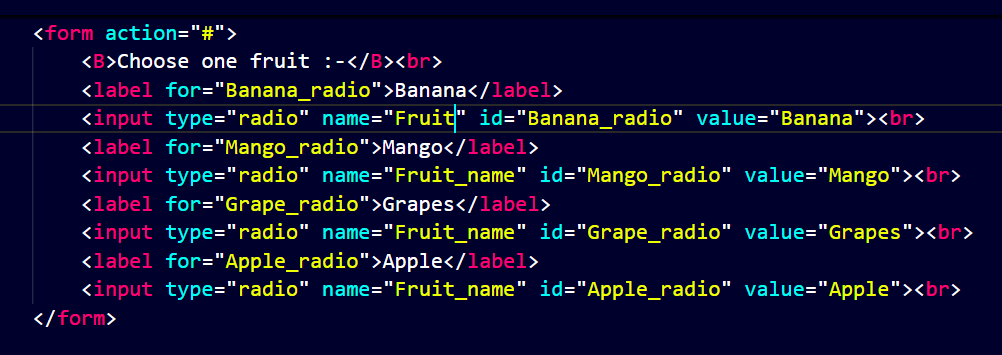
Note :- If we don't use same "name" attribute then we can select more than one items. For Example in following code we can choose banana and one of other fruits.:-
Syntax :-
<input type="radio" name=" " id=" " value="" >

Select Element :-
-
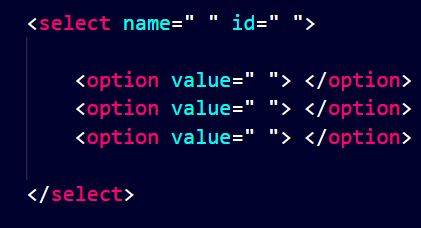
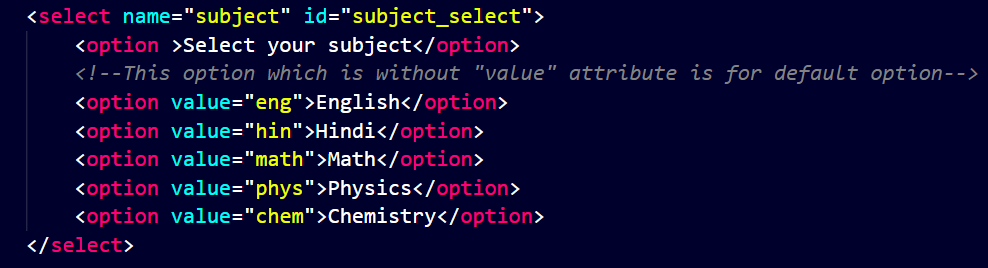
Select Element in HTML is used to create Dropdown Menu.
-
In Select Element two tags are used :-
- Select Tag :- This is used to intitialize Dropdown menu.
- Option Tag :- This is used to create Every individual options for select menu.
Example :-
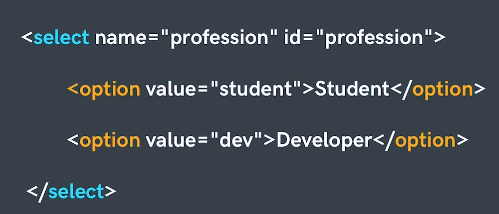
Following is a code to select a subject :-
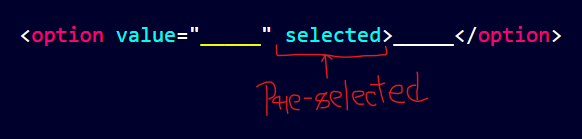
Note :- If we wanted that an option will come pre-selected then we use "Selected" Attribute in option tag. ie -
Range Element :-
To select option from a range. In This We use Min and Max Attributes to define the range of the element.
Syntax

Example :-

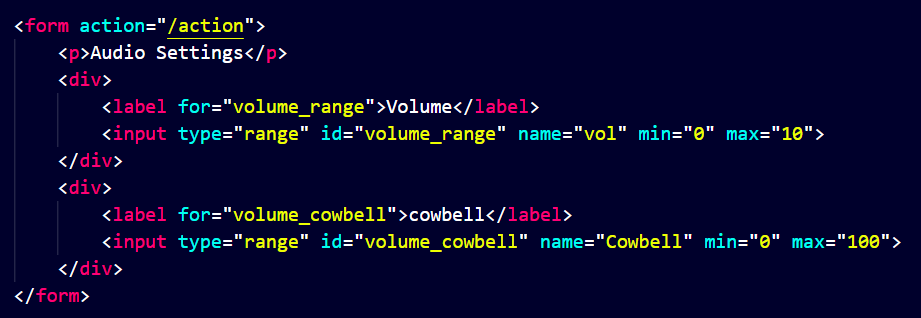
Note :- In Range We use "Step" Attribute to increase or decrease in the steps or interval of the value of "step" attribute And "Value" Attribute to predefine the value of the range
Syntax :-
<input type="range" name="vol" id="volume" min="0" max="100" step="10" value="70">
Example :-
"Text Area" Element :-
It is used to write large text in Html form.
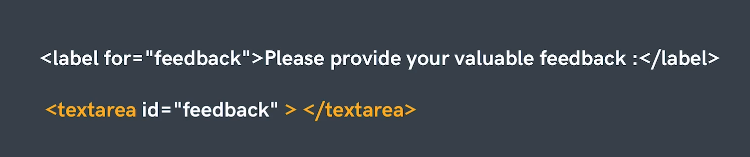
Note :- By default it has size of 2 rows and 20 columns. We can chage the size of the text-area by using Rows and ColsAttribute
